Parking Reminder: drove off and forgot to end the parking session? We’ll remind you.
The app notices when the car has driven away from the parking spot and reminds you to end the parking session in your parking app — and it alerts you before your parking time runs out.
Get it on Google Play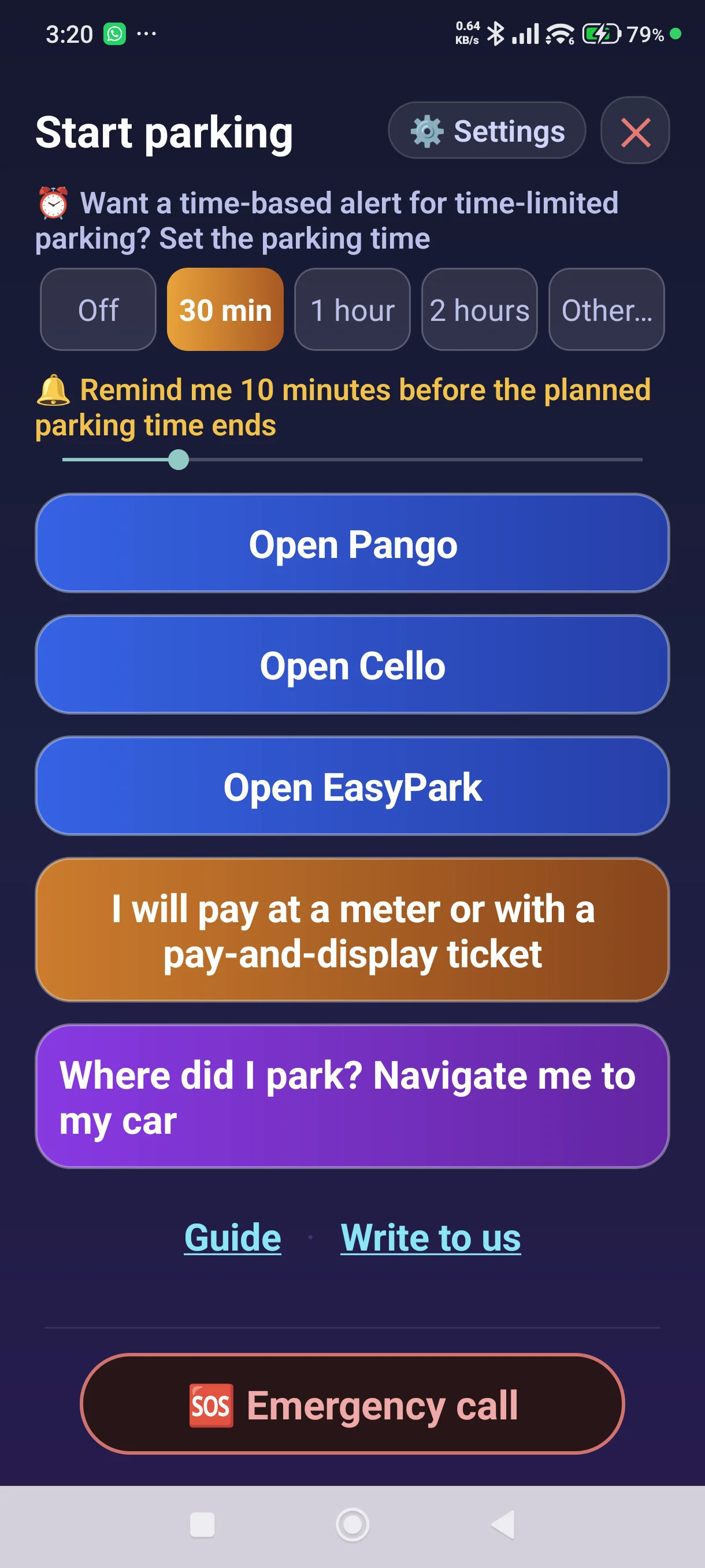
See how it works
A demo video with Pango. You open Pango to pay, and the app asks: “Watch your parking with Pango?” One tap, and the watch starts. When the car drives away and the parking is still open, you get a voice alert. And when you open Pango again, the app asks: “Did you end the parking?” One tap, and the watch ends.
This capability depends on granting the app all its permissions.
The video shows Pango; it works the same way with the other parking apps the app knows.
The car drove away. Did you end the parking session?
A spoken alert when the app notices that the car has driven away from the parking spot — and when the phone is connected to the car over Bluetooth, the app tries to play it through the car’s speakers too.
The parking time is running out
A reminder before your parking time runs out — whether at a meter, on a pay-and-display ticket, or on a time you set for yourself.
Back to the car
Your parking spot is saved on the phone, and one tap opens navigation back to it — in Google Maps or Waze.
A photo of the parking spot
In a large parking garage a GPS point does not tell you "level -3, pillar J". Photograph the pillar or the sign, and the photo will be there on your phone when you need it.
Your location stays with you
The parking spot and the photo are kept on the phone only. They are not sent to us. The only outbound request: the phone passes a point to Android’s address service — the parking spot, and on the emergency screen your current location — to get the street name; the address comes back to the phone and stays there. They leave the phone only when you choose to share them with someone.
What the app does
Each feature, and the screen where you use it.
Ready for parking — the app notices you opened a parking app
Two ways to use the app with a parking app: from our app — pick the parking app you want on the start screen; or open the parking app you want — and our app provides the parking-app user with additional services that complement those of the parking app.
No need to remember to open the app. Open EasyPark, PayByPhone or any other parking app the app recognises — and within seconds a small card appears on top of it: "Watch your parking with EasyPark?". One tap on "Yes, watch it" — and the watch on the parking is on, exactly as if you had opened the app yourself. And if you are not starting a new parking right now — answer "Not now", and the card is gone. Note: for the start of a parking to be noticed, the parking app has to be opened. If the parking app has been open for a long while and you start a parking inside it, the start will not be noticed.
More on this – Ready for parking — the app notices you opened a parking app
What it needs: two permissions the app asks for the first time you start a parking from its screen — "Was the parking app opened" (usage access) and "Display over other apps". If you skipped them, you can complete them at any time under "App permission status" in Settings.
The sign that the app is awake: a fixed, silent notification, "Ready for parking", in the notification drawer. The app checks one thing only — whether a parking app came to the front — and only while the screen is on.
The time watch on a parking app that started from the card can be completed later too: the active-parking screen shows the time buttons, and a time reminder can be added after the watch has begun. The time is counted from the start of the watch.
A parking at a meter or with a pay-and-display ticket is started from our app.

The floating sign
While a parking is being watched — and our app does not fill the whole screen, or you are in another app — a small icon of our app appears over the screen, with a ring around it that alternates between blue and white.

The floating sign works for a parking at a meter or with a pay-and-display ticket just as it does for a parking with a parking app.
One tap opens three choices: "Stop watching this parking" — the same button our own screen shows; "Open the app"; and "Cancel", which puts the icon back. Touch nothing and the icon comes back by itself after a few seconds. You can drag it anywhere on the screen with one finger, and it stays where you put it for the parkings that follow.
More on this – The floating sign
What it needs: the "Display over other apps" permission. Without it the fixed notification in the drawer is the only sign.
Start the watch next to the car
Next to the car, tap the button for how you pay — a parking app, a meter, or a pay-and-display ticket. The watch then starts, and if you chose a parking app, it opens as soon as our app has finished speaking, so you can start your parking session there as usual. If your phone is muted and there is nothing to hear, it opens straight away.
Above the payment buttons you can choose the parking time: 30 minutes, 1 hour, 2 hours or "Other…". As soon as you choose a time, a slider appears where you set how many minutes before the end of the parking time the reminder arrives — between 5 and 30 minutes.
More on this – Start the watch next to the car
The watch-start screen has one button for each parking app installed on the phone, plus another for a meter or a pay-and-display ticket. You set the parking location and start the parking session in the parking app as usual, and only then does charging begin. Until you do that, no parking session has started and nothing has been charged.
Start the watch next to where the car is parked, so that the parking spot recorded in the app is accurate. The distance from the parking spot and the movement of the phone are what we use to detect that the car has driven away — which is why an accurate location matters. If the watch is started far from the car, the drive-away alert may arrive too early or too late, and the navigation back will take you to where the watch was started rather than to the car.
Transcript – This is how it sounds — the watch has started
Parking watch is on.
The screen while parked
Once the watch has started, the screen shows that it is active, which app you paid with, and when the parking started. Below are the useful actions while parked: stopping the watch, navigating back to the car, "Say it again", and photographing the parking spot.
There is no need to keep the app open. Once the watch has started you can leave the app — it keeps watching in the background.
You leave with the phone’s Home button (the ◯ circle in the middle of the bottom row of the screen, or a swipe up from the bottom of the screen), the phone’s Back button (the ◀ triangle at the bottom of the screen, or a swipe in from the edge of the screen), by switching to another app, or by swiping the app away from the recent-apps screen. Even when the app is not on the screen, the floating icon appears over the screen and shows that the watch is on.


When the car drives away from the parking spot
When the app notices that the car has driven away from the parking spot, it reminds you to end the parking session in your parking app — so you do not keep paying after you have left.
More on this – When the car drives away from the parking spot
The alert arrives only when both conditions are met together: you are far enough from the parking spot, and the phone is moving at car speed. Walking away does not trigger it — you can go out for a coffee and come back without us bothering you.
Our watch and your parking app run separately: ending the parking session in your parking app, or closing the parking app itself (EasyPark, ParkMobile and so on), does not stop our watch — we cannot know whether you ended the session in the app or not. Finished parking? Stop our watch too, with "Stop watching this parking". If you do not, the app keeps running in the background, alerts you if there is anything to say (including a time reminder you set), and after a while shuts itself down gently.
Transcript – This is how it sounds — the drive-away alert
This is a message from Parking and Drive Away Reminders: it looks like the car is driving away from the parking spot. Please make sure the parking session was ended in your parking app, to avoid paying for nothing.

Stopping the watch
Done parking and ended the session — in your parking app, at the meter or with the pay-and-display ticket? Stop our watch too, in one of three ways:
- Press the red button "Stop watching this parking" on the app's screen.
- If the floating icon is on the screen — a tap on it opens a menu with the same button: "Stop watching this parking".
- If you paid with a parking app: if you open the same parking app again during the watch, we ask whether you've ended the parking. A tap on "I've ended it or will now" — and the watch stops.

If you forgot where you parked
The "Navigate me to my car" button takes you back to the parking spot — with walking directions in Google Maps, or driving directions in Waze.
The button is shown to the user only while the phone holds a location from the last parking. When there is none, it is not shown at all.

A meter or a pay-and-display ticket
Use the time buttons to choose how long you paid for, and on the slider that appears below them set how many minutes before the end to be reminded — between 5 and 30 minutes. When the time comes, the phone tells you that your parking time is about to run out.
Transcript – This is how it sounds — the time reminder
This is a message from Parking and Drive Away Reminders: the parking time you paid for is about to end. It is worth returning to the car or buying more parking time.

A photo of the parking spot
On the main screen you can take a photo of where you parked — the level, the pillar, the sign. Tap the photo to enlarge it.
More on this – A photo of the parking spot
The photo is taken with the phone’s own camera app, so our app never asks for the camera permission. It is stored inside the app only — not in the gallery — and is never sent to us. The time and the recorded address are stamped on the photo; if no address was found, the coordinates and their accuracy are stamped instead. Only one photo is kept at a time: a new one replaces the previous one. It stays after you stop the watch, and is deleted when you start a new parking, when the watch closes by itself after a drive was detected, or when you tap "Delete the photo".

No need to look at the screen
Didn’t catch what was said? The parking screen has a "Say it again" button — tap it to play the last message again. You can repeat it as many times as you need.
The messages are spoken, so you will know about them even when the phone is in your pocket, while you are driving, or when the screen is locked.
More on this – No need to look at the screen
The voice comes out of the phone — and when the phone is connected to the car over Bluetooth, the app tries to play it through the car’s speakers — at the same volume as videos and music. If we suspect the voice is not being heard, the message is shown in writing.
When you switch the text channel off, the app asks what to do when the phone is muted — and if you chose "Write when muted", a written message appears whenever the voice cannot be heard. You can also add temporary text messages to the spoken ones — ones that pop up on the screen and disappear by themselves — by ticking the box on the Settings screen. When the phone is connected to the car’s Bluetooth, we aim to play the message through the car’s speakers, where you can hear it while you are driving. There is nothing for you to set up in the car’s system; the app does it by itself. In rare cases the message may be heard from both the phone and the car’s speakers.

There is also an emergency tool
It contacts the people you chose in advance, and does not call the emergency services.
One tap opens a screen with each helper you set up on a separate row — and one more tap opens a call to them, or a WhatsApp message or an SMS already written — you press send.
More on this – There is also an emergency tool
You set the helpers up once: choose up to three people from your contacts and add your own name.
The message includes who you are, the time, where you are at that moment — street and city — a Waze link to your location, and that you need help. You can add a line of your own, which is saved so you do not have to type it at the moment it matters. The same screen also has tools you can use before anyone answers: a steady light, a flashing light, and a siren, each switched on and off with a tap. Your helpers are stored on this phone only, and their numbers are never sent to us.

What you can change in Settings
In Settings you can change, among other things: the interface language, how you pay for parking, how we alert you, and from there you also fill in any missing app permissions.
More on this – What you can change in Settings
Under "How do you pay for parking" you choose which parking apps have a button on the watch-start screen — full details are in the next section, "Parking apps".
Under "How we alert you" you turn on the text channel.
On the same screen you can also change the text size — on the Settings screen and in the guide — and open the guide, "Write to us", and the terms of use.

Parking apps
The phone itself builds the list of parking apps. So a recognised parking app installed on your phone appears on the watch-start screen automatically.
More on this – Parking apps
In Settings, under "How do you pay for parking", there is an option for a meter or a pay-and-display ticket and a checkbox for every parking app found on this phone. Each selected option gets a button, and at least one payment option must stay selected.
If your app is not on the list, the same place has a "Missing a parking app?" option. Tapping it opens the phone’s list of apps, and whichever app you choose will then behave like any other parking app. An app you added this way can also be removed from the list. An app that was detected automatically stays as long as it is installed, and you can hide its start button by clearing its checkbox.
When you start the watch we open the parking app you chose, after our app has finished its message. When the car drives away from the parking spot we remind you to make sure you ended the parking session. The drive-away alert does not open your parking app automatically — it only reminds you.
When you are using a parking app you can also turn on a time reminder — one you set for yourself, in addition to the drive-away alert. On the watch-start screen you decide whether you want a time reminder for the parking; the default is no. If you want one, set the parking time by tapping one of the buttons — 30 min, 1 hour, 2 hours or “Other…” — and also set how long before the parking time ends the reminder should arrive (5 to 30 minutes). Note: the time reminder stays active even if you have meanwhile closed the parking app — it ends only with the watch, when you press "Stop watching this parking".

Permissions
For the app to work at its best it needs several permissions from Android, and it will ask you for them when you start your first parking session. Android requires each permission to be approved separately. Worth knowing: a reminder that arrived late or not at all almost always comes down to a permission or an approval that was not granted. When everything the app asks for is granted — the permissions and the battery-restriction exemption — the reminders arrive on time.
We check the state of your permissions, and if it is not complete — we alert you and recommend that you fix it. As long as it is not fixed, from your first parking on, you will get a message about it once a week through the app's personal-messages channel. The message lists which permissions are missing.
More on this – Permissions
Some permissions are essential — without them the app cannot do its job. Others are recommended — they improve the service, but the app works without them too. Each permission is marked accordingly in the "App permission status" section, with an explanation of what it enables and what happens if it is not granted.
A permission is requested the first time the app actually needs it after installation, and it stays in effect after app updates as well.
"App permission status" shows at any moment what has been granted and what is missing, and lets you complete any permission that is missing. A permission you have already granted stays yours: if you want to revoke it, you do that in the phone’s Android settings, not here.

Write to us
The "Write to us" screen is mainly for contacting us: to report a problem, or to suggest an improvement. Write a few words about what happened or what is missing, and send.
More on this – Write to us
The app’s event log is always sent with the report. It is what makes a report useful, because it shows us what the app actually did, not just what appeared on the screen.
What reaches us: what you wrote, the event log and your phone model. What never reaches us from this screen: locations, your real name, your phone number, your email address, photos and recordings.
Whoever wants to send us a recording or a photo can send them from their own mailbox to parkingreminderalerts@gmail.com. That way their email address reaches us, and they do it by their own choice and at their own responsibility.
On the same screen you can also share a parking spot with a friend or with yourself. You choose the app and the person, and only the items you ticked are shared — the parking spot, your current location and the photo. They go from your phone straight to the recipient and do not pass through us.

Personal messages from us
Sometimes we send you a personal message. When a message is waiting, a blinking pink bar appears: on the app’s main screen, and also on the card that pops up when you open the parking app. Tapping the bar opens the message right there — without leaving the parking app. Tapping "Got it" marks it as read, and if more messages are waiting, they are shown one after the other. A message you have not read does not disappear: the bar comes back the next time you open it, until you read it. And some messages are written by the app itself on the phone, without any communication; they appear in the pink bar too.


The automatic report
From time to time the app sends us an automatic technical report, so we can see how it performs in real use — mainly when something did not work as expected. That is how we learn about problems even when nobody has written to us.
More on this – The automatic report
What is never sent: location, a picture or a recording. What is sent: the event log, the counters, the phone model and version, the interface language and country code, an install id, the purchase status or trial period, and the kind of problem that was detected.
In the first month after installation the reporting is always on, so we can find and fix faults across versions and phone models. Even then it includes no location, photo or recording.
After the first month, users who paid can switch it off on the "Write to us" screen. Whoever switches it off reduces our ability to handle faults on their phone, and that is their responsibility.

What people say about us
- Kan 11 — Israel’s public TV channel, the news program “Kan BeShesh” · 15 September 2026, 18:50 — a report on the app and its developer, in Hebrew. It is the last item in the program. Watch on the Kan website (opens in a new window)
- Geektime — the Israeli technology site · 12 September 2026 — an article on the app, in Hebrew. Read on Geektime (opens in a new window)
- TuttoAndroid — an Italian technology site · 4 September 2026 — an article on the app, in Italian. Read on TuttoAndroid (opens in a new window)
And what users say — in the reviews on Google Play (opens in a new window).
Questions and answers
What does Parking & Drive Away Reminders do?
It reminds you of two things: to end your paid parking session after the car has driven away from the spot, and to deal with the parking before the time runs out.
Along the way it also saves your parking spot so you can navigate back, lets you photograph it, and includes an emergency call button.
What is the difference between the two alerts?
The drive-away alert arrives when we notice that the car has driven away from the parking spot, and reminds you to make sure you ended the parking session in your parking app. The time reminder tells you that your parking time is about to run out — whether it is time you paid for at a meter or on a pay-and-display ticket, or time you set for yourself when you parked using a parking app.
Note: the drive-away alert works when you are using a parking app. When you pay at a meter or with a pay-and-display ticket, only the time reminder runs.
Do I have to start the watch every time I park?
Yes. Every time you park, start the watch next to the car: choose in the app how you are paying, or open your parking app and tap “Yes, watch it” on the card that appears over it.
It matters that you do it next to the parking spot: that is what the distance is measured from, and that is where the navigation will bring you back to.
What happens if I forgot to start the watch when I parked?
Without starting it we have no parking spot, so no drive-away alert will arrive.
And if you start it later and somewhere else — the spot that is saved is the place where you started it, not where the car is standing. To avoid this: with a parking app, opening the app brings up a card — and a tap on “Yes, watch it” starts the watch.
Does the app end my parking session in EasyPark or ParkMobile for me?
No. When you park, it opens the parking app you chose, and you start the parking session there as usual. When the car drives away it reminds you to end the session — it does not end it itself, and it does not know whether you did.
What it does notice: if the parking app was last used on this phone more than ten minutes before the drive, the drive-away alert is worded more firmly — because to end a parking session in the app you have to open it, so the session is likely still running. This needs the usage-access permission, and the check looks back up to twelve hours.
I forgot to end my parking session — what now?
End it now, even late. Then check your parking history to see what was charged, and if the charge is excessive and does not seem fair, you can contact the parking app’s customer service or the city.
Read more: what happens to the charge, and how to attach evidence if you appeal
How will I hear the alert in the car?
Through the phone’s speakers — and when the phone is connected to the car over Bluetooth, the app tries to play the message through the car’s speakers.
What happens if there is no GPS reception?
In an underground garage or inside a building there is no satellite reception, and that is normal.
The app notices this and shows a single silent notice, then removes it when reception returns. The time reminder works regardless, because it is based on time rather than location.
How much does the app cost?
The download and the trial are free, with no credit card required. The trial lasts for a month or 15 watched parking sessions, whichever comes first.
After it, a one-time lifetime purchase through Google Play — launch price since September 2026: $5 — with no subscription and no recurring charge. The price stands until we change it.
Will I be charged automatically when the trial ends?
No. You do not provide any payment details for the trial, so you cannot be charged automatically.
Which parking apps does it work with?
The app automatically detects the parking apps installed on your phone — EasyPark, ParkMobile, PayByPhone, SpotHero, ParkWhiz, Passport Parking, RingGo, JustPark and others — and shows a start button for each. There is also a button for a meter or a pay-and-display ticket, and you can add an app we do not recognise.
Does it send my parking spot to anyone?
Not to us. The parking spot stays on the device and is for you only — to navigate back to the car, or to share with a friend if you choose to. The only outbound request is to Android’s address service, which returns the street name to the phone.
Do I need to keep the app open?
No. Once the watch has started you can leave the app — with the phone’s Home button, the phone’s Back button (the ◀ triangle at the bottom of the screen, or a swipe in from the edge of the screen), by switching to another app, or by swiping it away from the recent-apps screen. The app will not be on the screen, but the watch keeps running in the background, and the floating icon appears over the screen as the sign that the watch is on (if you allowed “Display over other apps”). Note: the X in the corner of the app’s screen does more than close. During a watch it asks “Close the app?” and offers two choices: “Stop and exit”, which ends the watch completely, or Cancel, which takes you back to the app’s screen, and the watch goes on.
For every watched parking, an ongoing notification also shows that the watch is active, as long as you have allowed the app to show notifications.
Will it drain my battery?
While a watch is active the app uses location, so it uses more battery than when idle. After both alert rounds are over it turns location off and, a few seconds later, ends the watch by itself; when you stop the watch, everything stops at once.
What is the emergency button?
One tap opens a screen with the helpers you set up in advance. With one more tap you can call any of them, or send them a WhatsApp message or an SMS carrying a prepared message with your location. The same screen also has a steady light, a flashing light and a siren.
Does the emergency button automatically alert the police or an ambulance?
No. The button contacts only the people you chose in advance.
It is not a substitute for the emergency services and does not alert them. In a real emergency, call your local emergency number.
Which languages does the app speak?
Six: Hebrew, English, German, Spanish, French and Italian — both the screens and the voice alerts. You can change the language in Settings.
Ready to try it?
A month or 15 watched parking sessions free to try — no credit card and no payment details required. After it, a one-time payment — launch price since September 2026: $5.
Get it on Google Play